
Team Calendar
Manage your team's schedule with a full-featured calendar supporting events, RSVPs, and recurring meetings.
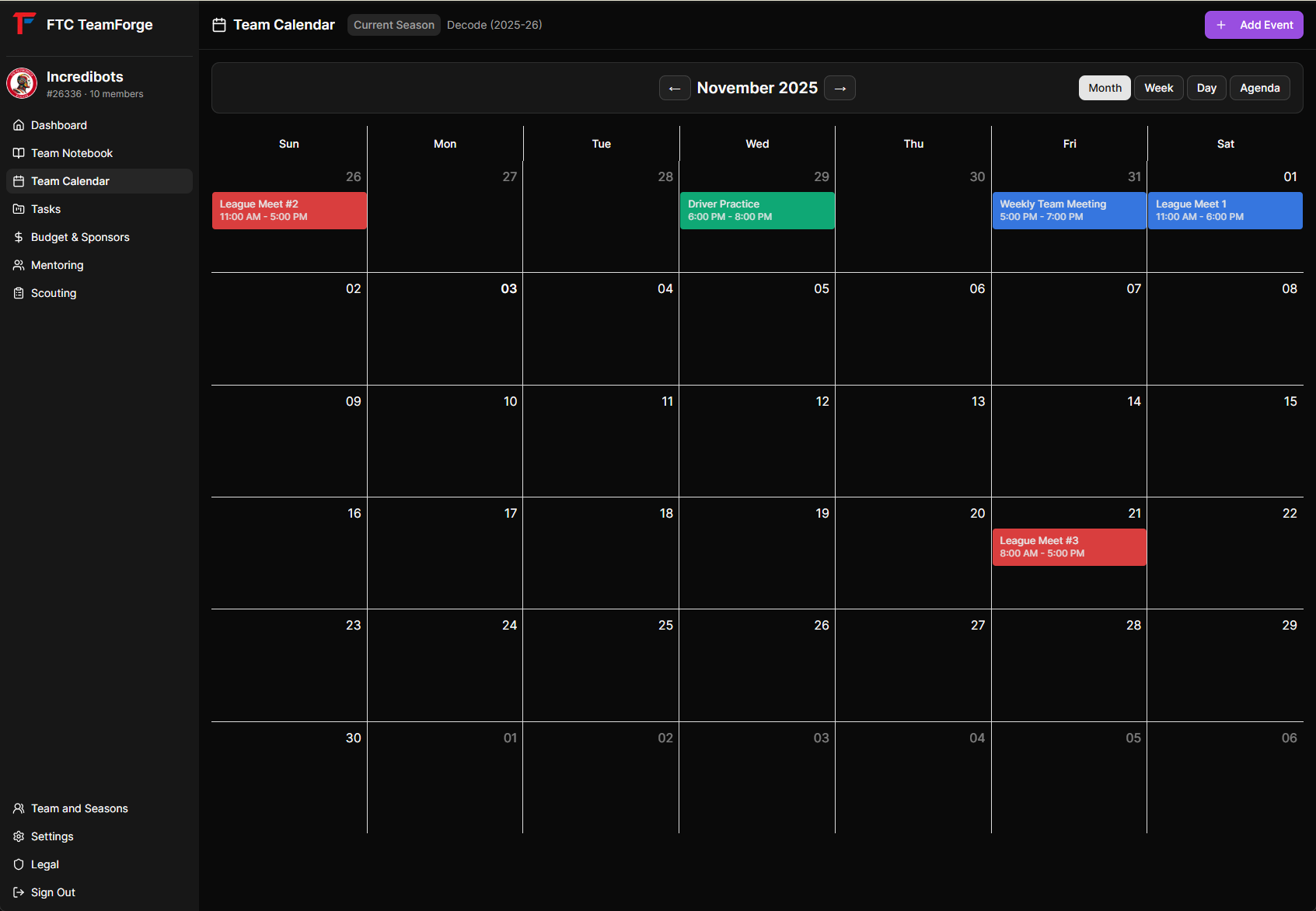
Calendar Views
Switch between different calendar views using the toolbar:
- Month View - See your full month at a glance
- Week View - Detailed weekly schedule
- Day View - Hour-by-hour breakdown of a single day
- Agenda View - List view of upcoming events
Creating an Event
Create a new calendar event:
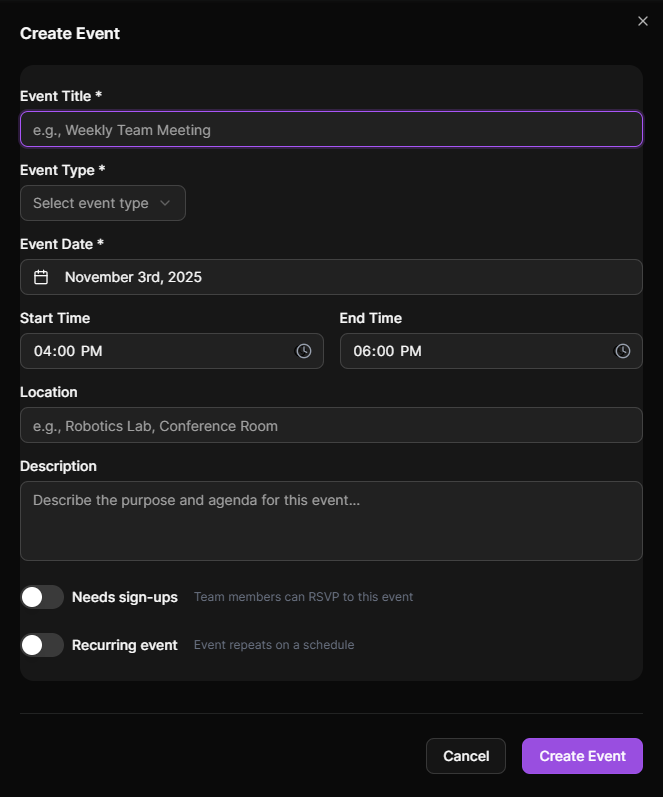
- Click "+ New Event" or click directly on the calendar
- Fill in event details:
- Title - Event name
- Event Type - Choose from:
- Meeting
- Competition
- Outreach
- Workshop
- Social
- Date & Time - Start and end date/time
- Location - Venue or address
- Description - Additional event details
- Click "Create Event"
Event Types
Events are color-coded by type for easy identification:
- Meeting - Regular team meetings
- Competition - FTC competitions and scrimmages
- Outreach - Community outreach events
- Workshop - Training sessions and workshops
- Social - Team social activities
Recurring Events
Set up events that repeat automatically:
- When creating/editing an event, check "Recurring Event"
- Select recurrence pattern:
- Daily
- Weekly
- Monthly
- Yearly
- The event will automatically appear on future dates
Use Cases for Recurring Events
- Weekly team meetings
- Monthly sponsor updates
- Annual fundraising events
RSVP System
Track who's attending events:
Responding to Events
Click on an event to view details and respond:
- Attending - You'll be there
- Not Attending - You can't make it
- Maybe - You're uncertain
- Pending - No response yet (default)
Viewing Attendees
Event organizers can see who's attending:
- Click on the event
- View the "Attendees" section
- See response status for each team member
Managing Events
Editing Events
Update event details:
- Click on an event
- Click "Edit Event"
- Modify any fields
- Save changes
Deleting Events
Remove events from the calendar:
- Click on the event
- Click "Delete Event"
- Confirm deletion
Note: Deleting an event also removes all attendee responses.
Event Notebooks
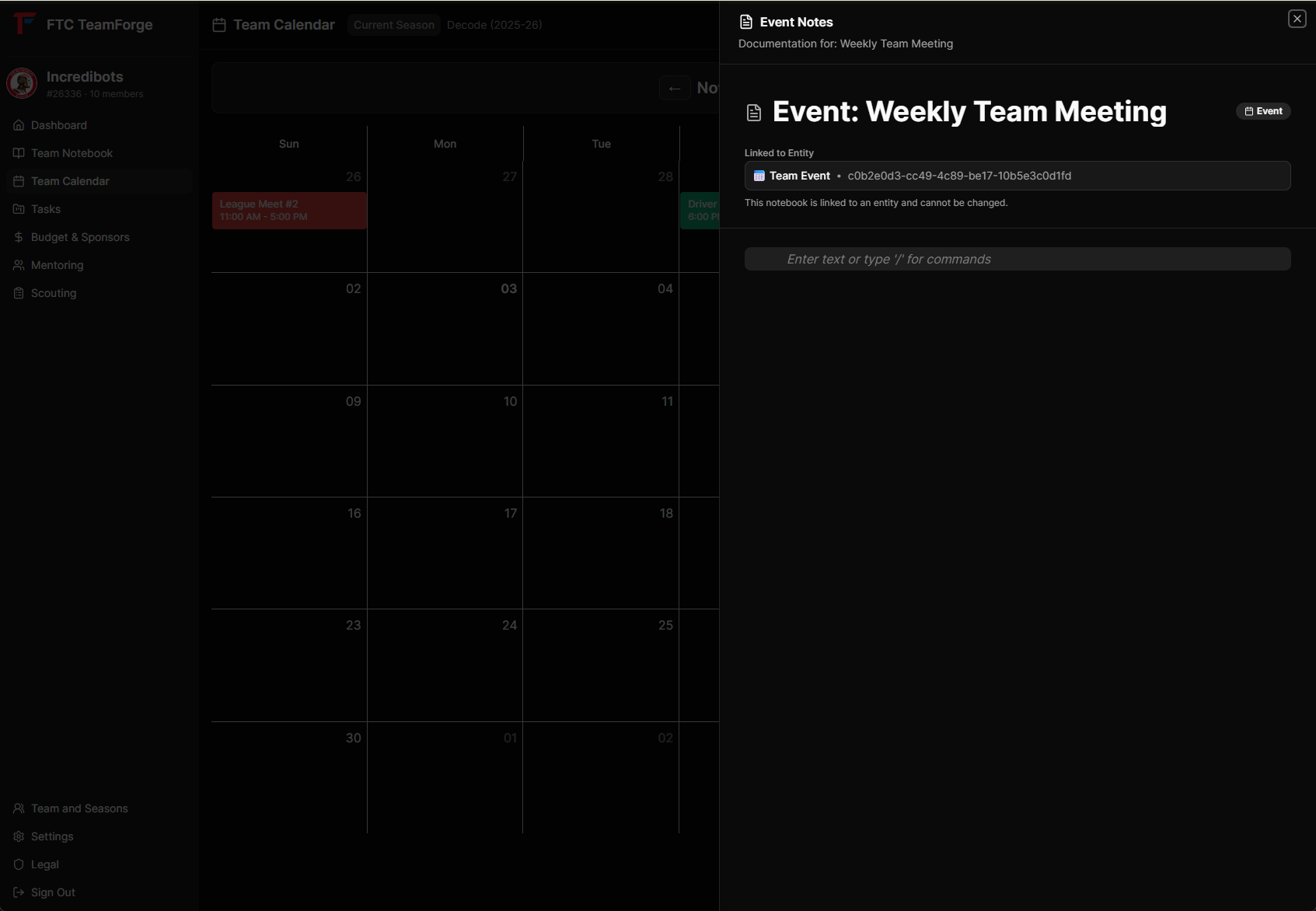
Document events with linked notebook pages:
- Click on an event
- In the event details, you'll see linked notebooks
- Create pages for:
- Meeting agendas
- Competition strategy notes
- Outreach event summaries
- These pages appear in the Notebook module linked to this event
Filtering Events
Filter events by type using the filter dropdown:
- Click the filter button in the toolbar
- Select which event types to show/hide
- The calendar updates to show only selected types
Upcoming Events Widget
The 5 nearest upcoming events appear on the Dashboard for quick reference.
Navigation
- Today Button - Jump back to today's date
- Navigation Arrows - Move forward/backward through time
- Date Picker - Jump to a specific date
Tips
- Use Event Types - Helps with filtering and organization
- Add Locations - Include addresses for easy navigation
- RSVP Promptly - Helps organizers plan effectively
- Document Events - Use linked notebooks for agendas and summaries
- Recurring for Regular Meetings - Save time by automating weekly/monthly meetings
- Mobile-Friendly - Calendar is fully responsive on mobile devices