
Database Setup
This guide will walk you through creating and configuring your Supabase database for FTC TeamForge.
About Data Ownership
FTC TeamForge requires a database to store your team's information. You own your own data - we don't host it on a shared server. The app uses Supabase, an open-source database platform with a generous free tier that's perfect for FTC teams. Your team's notebook entries, tasks, calendar events, and all other data will be stored in your own private Supabase database that only you control.
Step 1: Create a Supabase Project
Sign Up for Supabase
Go to supabase.com and sign up for a free account (or log in if you already have one).

Supabase homepage
Create a New Project
From your Supabase dashboard, click New Project.
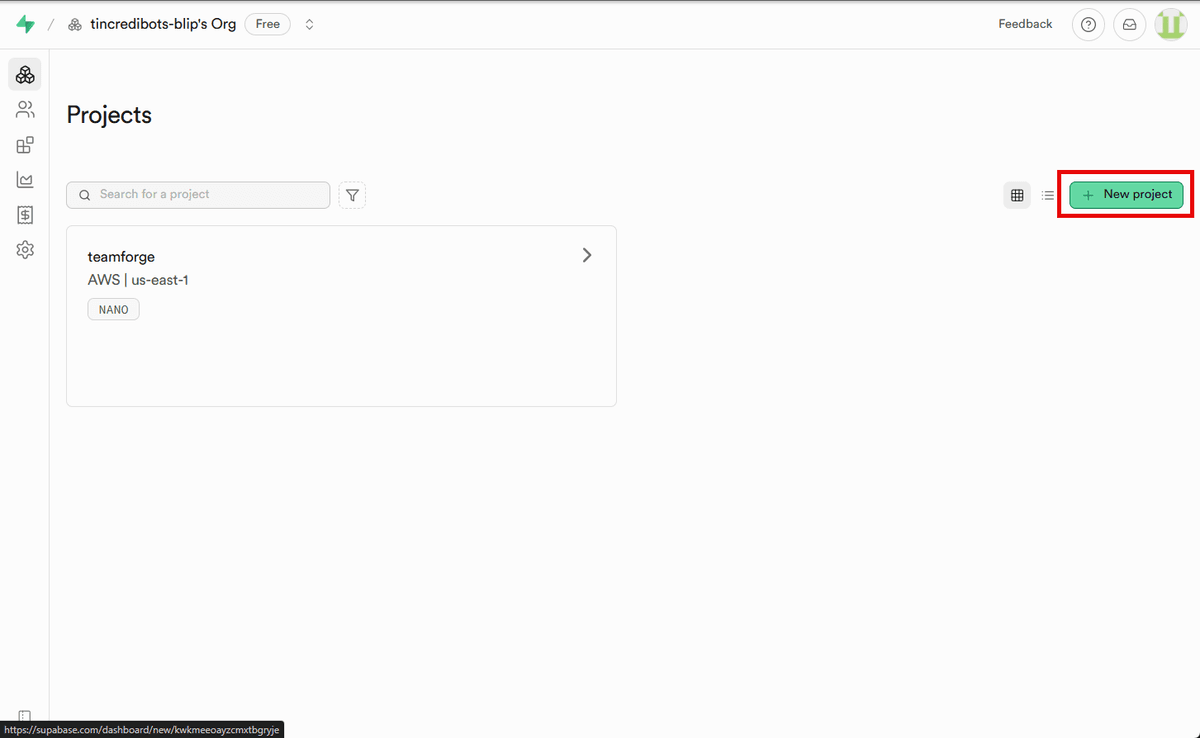
Create a new Supabase project
Configure Your Project
Fill in the project details:
- Name:
teamforge(or your team name) - Database Password: Create a strong password (save this!)
- Region: Choose the closest region to your team
- Pricing Plan: Free tier is sufficient to start
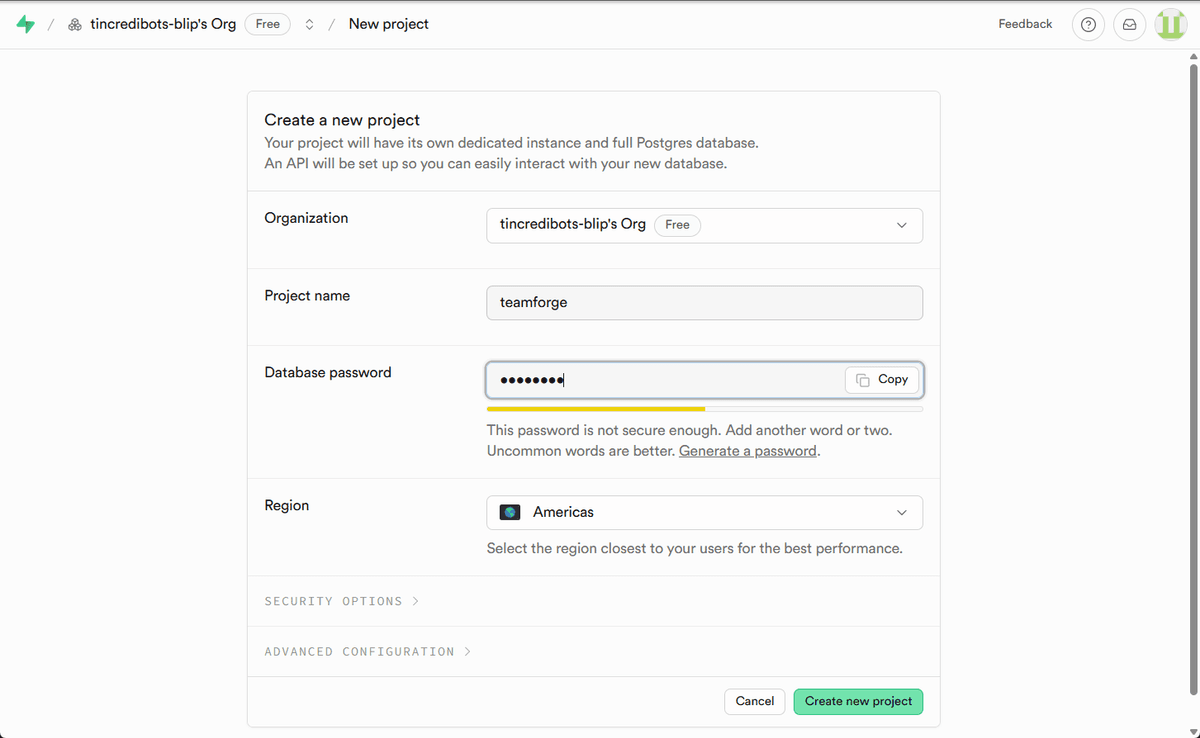
Configure your Supabase project
⚠️ Save Your Database Password!
Make sure to save your database password in a secure location. You'll need it later for database migrations.
Wait for Project Creation
Supabase will take 1-2 minutes to provision your database. Grab a coffee! ☕
Step 2: Get Your Supabase Credentials
You'll need three environment variables from your Supabase project. Keep all three copied safely as you'll need them for deployment.
Click on Project Settings
Once your project is ready, click on Project Settings in the sidebar.
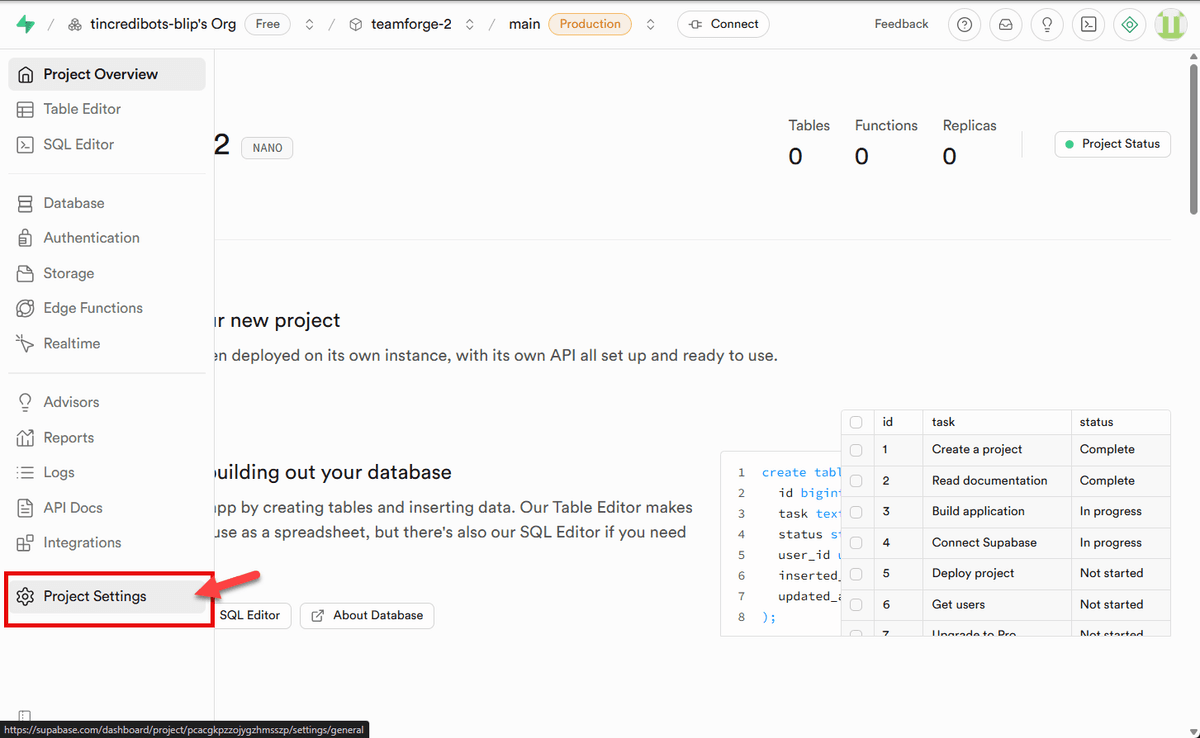
Click on Project Settings
Click the Connect Button
At the top of the settings page, click the Connect button.

Click the Connect button
Get URL and Anonymous Key
Click on App Frameworks and copy the values for:
- NEXT_PUBLIC_SUPABASE_URL - Your project URL
- NEXT_PUBLIC_SUPABASE_ANON_KEY - Your anonymous/public key
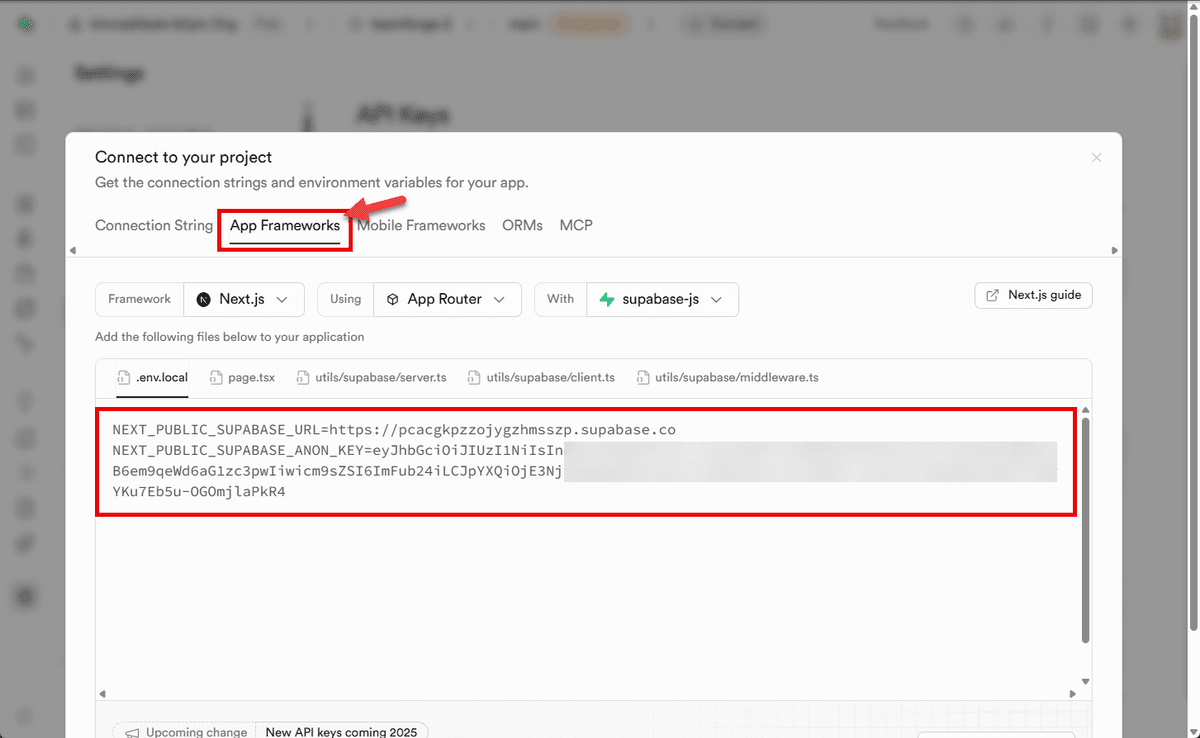
Copy URL and Anonymous Key from App Frameworks
Get Service Role Key
Now we need the service role key. Click on API in the left sidebar.
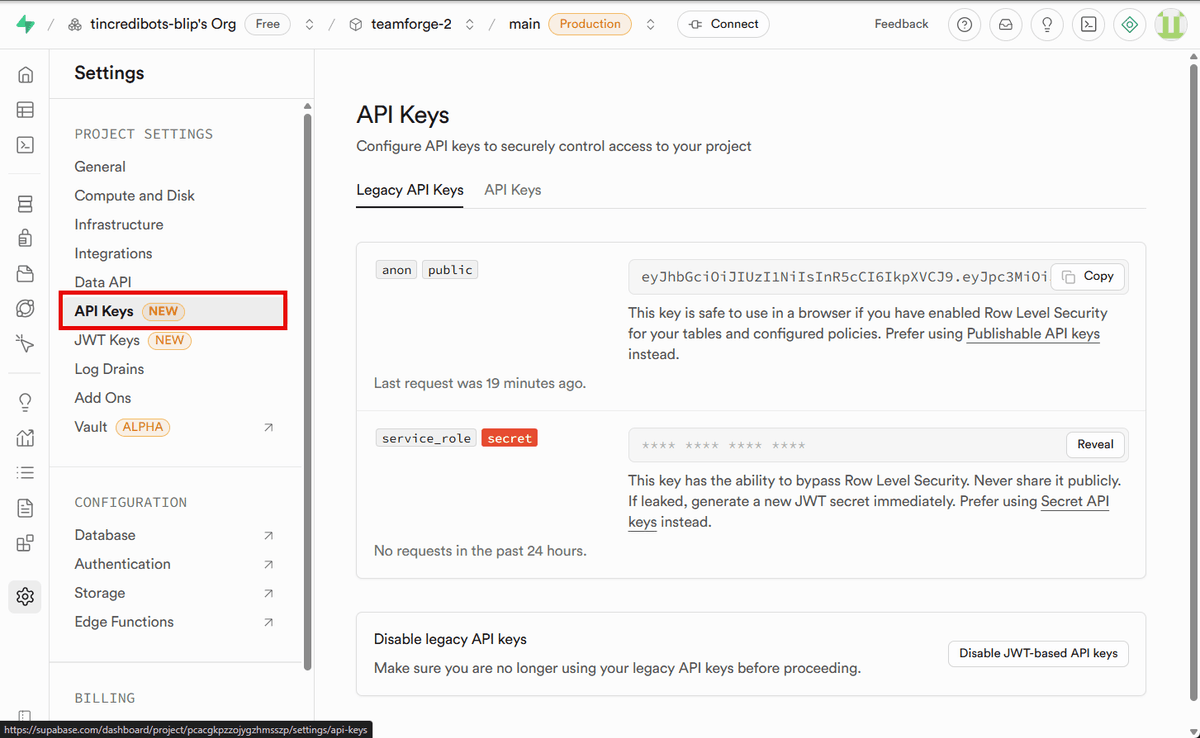
Navigate to API settings
In the service_role field, click Reveal and copy the value as:
- SUPABASE_SERVICE_ROLE_KEY - Your service role key
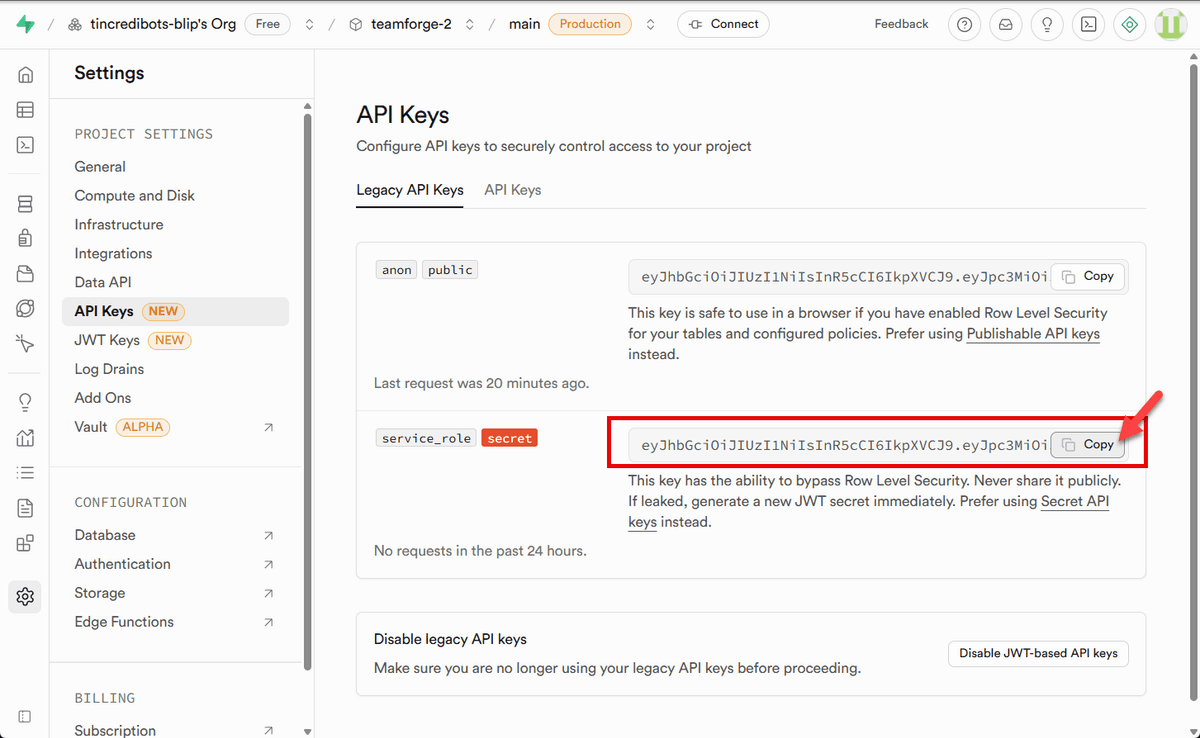
Reveal and copy the service role key
⚠️ Keep Your Keys Secure!
Never commit these keys to your repository or share them publicly. The service_role key has admin access to your database.
You're All Set!
You now have your Supabase database configured with all the necessary credentials. Depending on your deployment method, head to:
- Cloud Deployment Guide - To deploy TeamForge to Vercel
- Local Installation Guide - To run TeamForge locally