
Database Migration
After deploying TeamForge and configuring your Supabase credentials, you need to initialize your database by running the migration script. This creates all the necessary tables for your team's data.
Prerequisites
Before you begin, make sure you have:
- ✅ Completed Database Setup - Follow the Database Setup Guide to create your Supabase project
- ✅ Deployed TeamForge - Either via Cloud Deployment or Local Installation
Step 1: Access Your TeamForge Application
Visit your TeamForge application URL:
- If you deployed to Vercel:
https://your-project.vercel.app - If running locally:
http://localhost:3000
Step 2: Copy the Migration Script
When you first access TeamForge with an empty database, the application will automatically detect that no tables exist and display the SQL migration script.
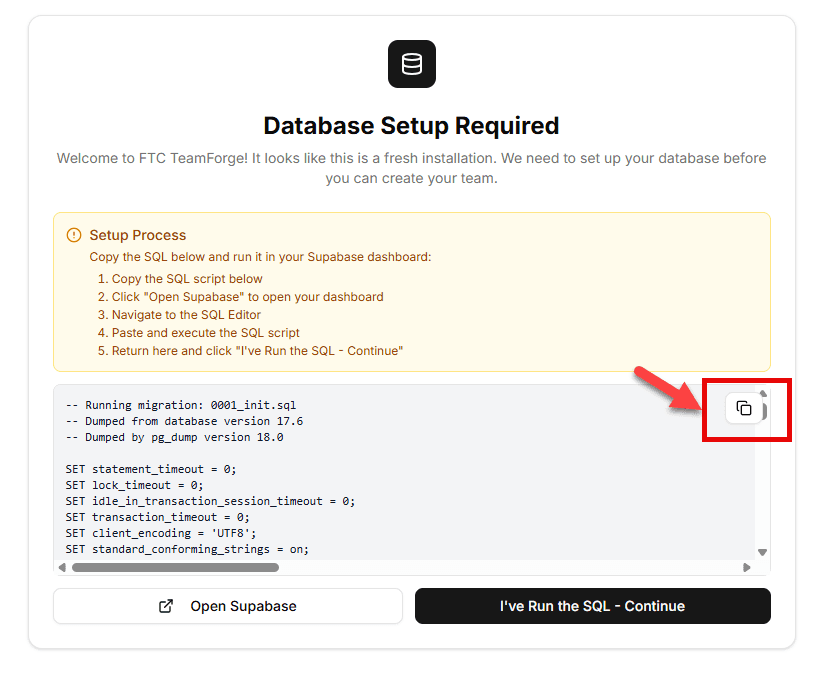
TeamForge showing SQL migration script on first run
Click Copy to copy the entire SQL script to your clipboard.
Step 3: Open Supabase SQL Editor
Navigate to your Supabase project dashboard and click on SQL Editor in the left sidebar.
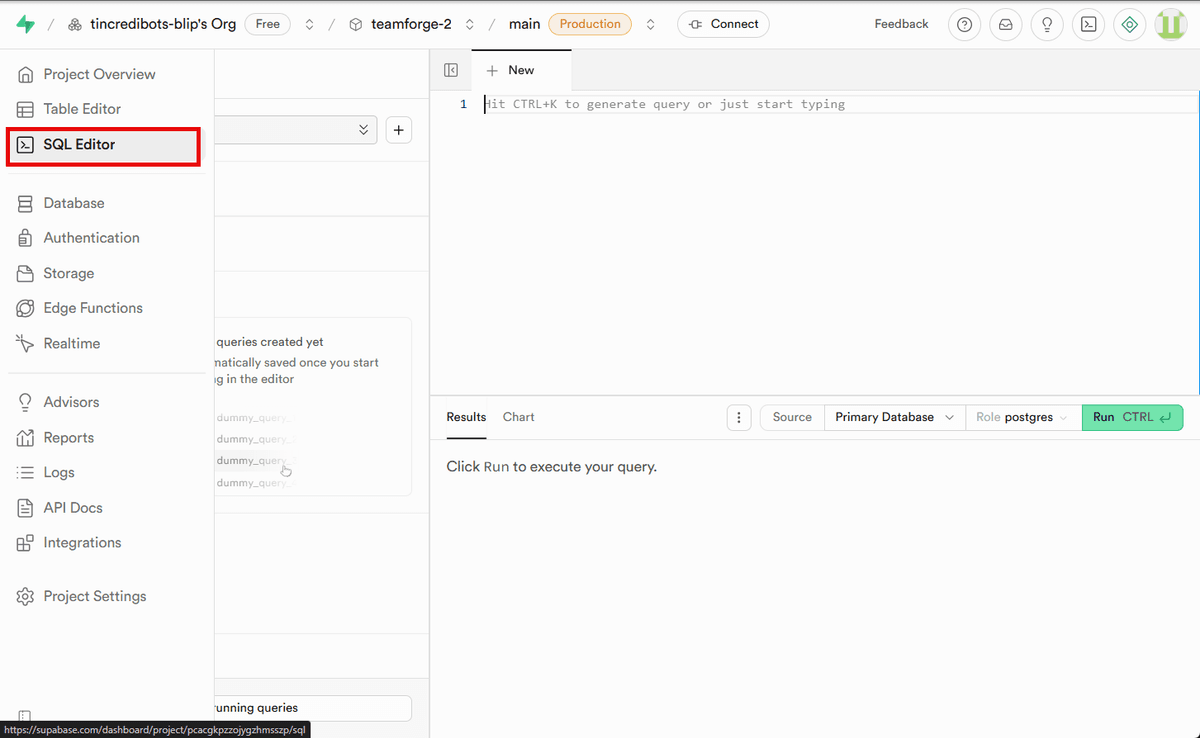
SQL Editor in Supabase sidebar
Step 4: Run the Migration Script
Paste the copied SQL script into the SQL Editor and click Run to execute it.
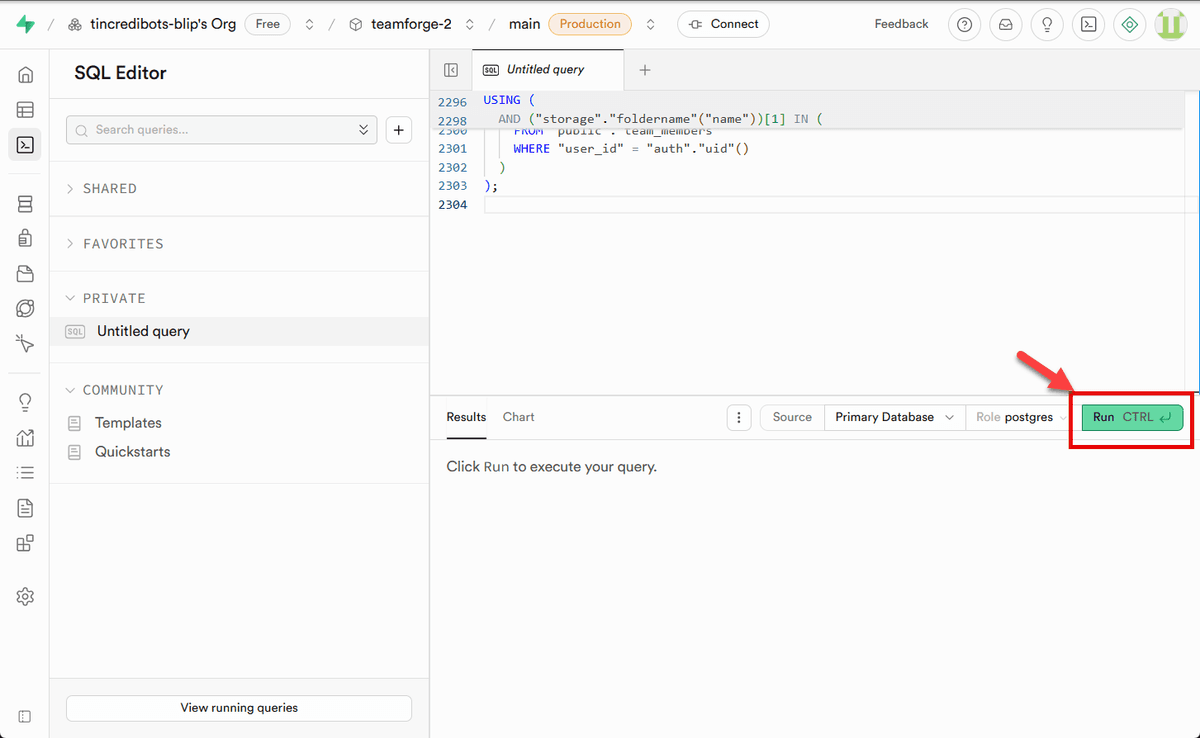
Paste and run the migration script
The script will create all necessary tables including:
- Users and authentication
- Notebook entries
- Tasks and assignments
- Calendar events
- Team settings
Step 5: Refresh TeamForge
Go back to your TeamForge application and refresh the page. The application will now detect the database tables and allow you to start using TeamForge!
What's Next?
Now that your database is set up, you can:
- Create your first team account
- Invite team members
- Start logging notebook entries
- Create tasks and manage your team's workflow
💡 Note
You only need to run the migration script once. The database tables will persist, and you won't need to repeat this process unless you create a new Supabase project.