
Cloud Deployment
To make TeamForge available to all your team members, you need to deploy it to the cloud. We recommend Vercel for its generous free tier and seamless GitHub integration. Deploy in just a few minutes with automatic updates and zero maintenance.
Prerequisites
Before you begin, make sure you have:
- ✅ Completed Supabase Setup - Follow the Database Setup Guide to create your database and get your credentials
- ✅ A Vercel account (create one at vercel.com)
💡 Important
You must complete the Supabase setup first! You'll need the three environment variables (NEXT_PUBLIC_SUPABASE_URL, NEXT_PUBLIC_SUPABASE_ANON_KEY, and SUPABASE_SERVICE_ROLE_KEY) from the Supabase setup guide for the deployment process below.
Step 1: Sign Up for Vercel
Go to vercel.com and sign up using your GitHub account.

Sign up for Vercel with GitHub
Step 2: Create a New Project
After logging in, click Add New and then select Project.
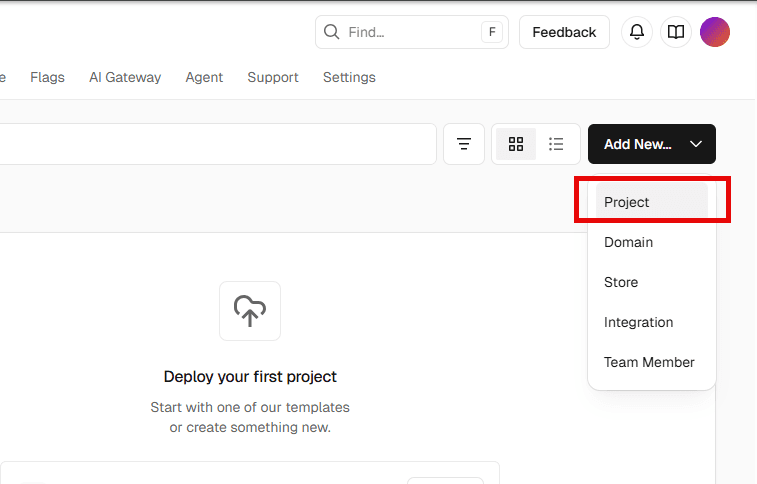
Click Add New then Project
Import the TeamForge Repository
Paste the TeamForge repository URL:
https://github.com/incredibotsftc/teamforge
Click Import to deploy the public repository directly to your Vercel account.
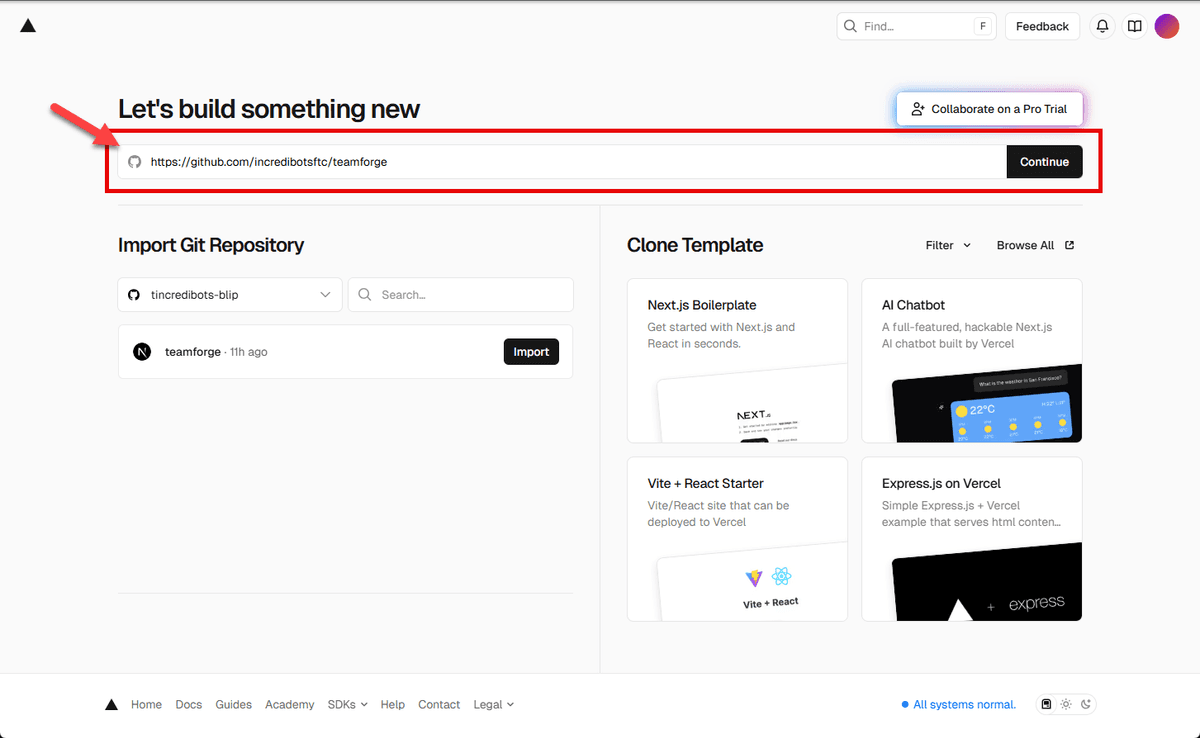
Import the TeamForge repository
Create the Project
After importing, click Create Project to proceed with the deployment setup.
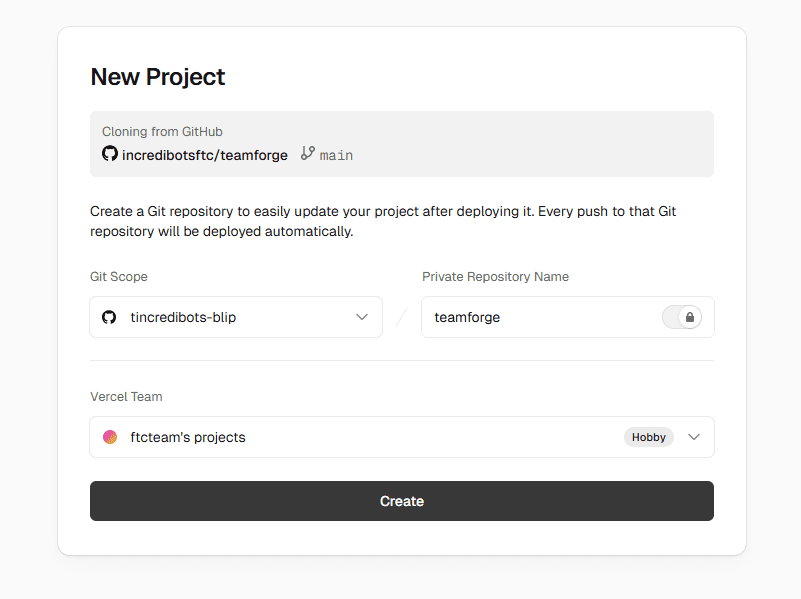
Click Create Project
Step 3: Configure Environment Variables
Before deploying, you need to add your Supabase credentials as environment variables.
Access Project Settings
From your project dashboard, click on Settings.

Click on Settings
Navigate to Environment Variables
In the Settings page, click on Environment Variables.
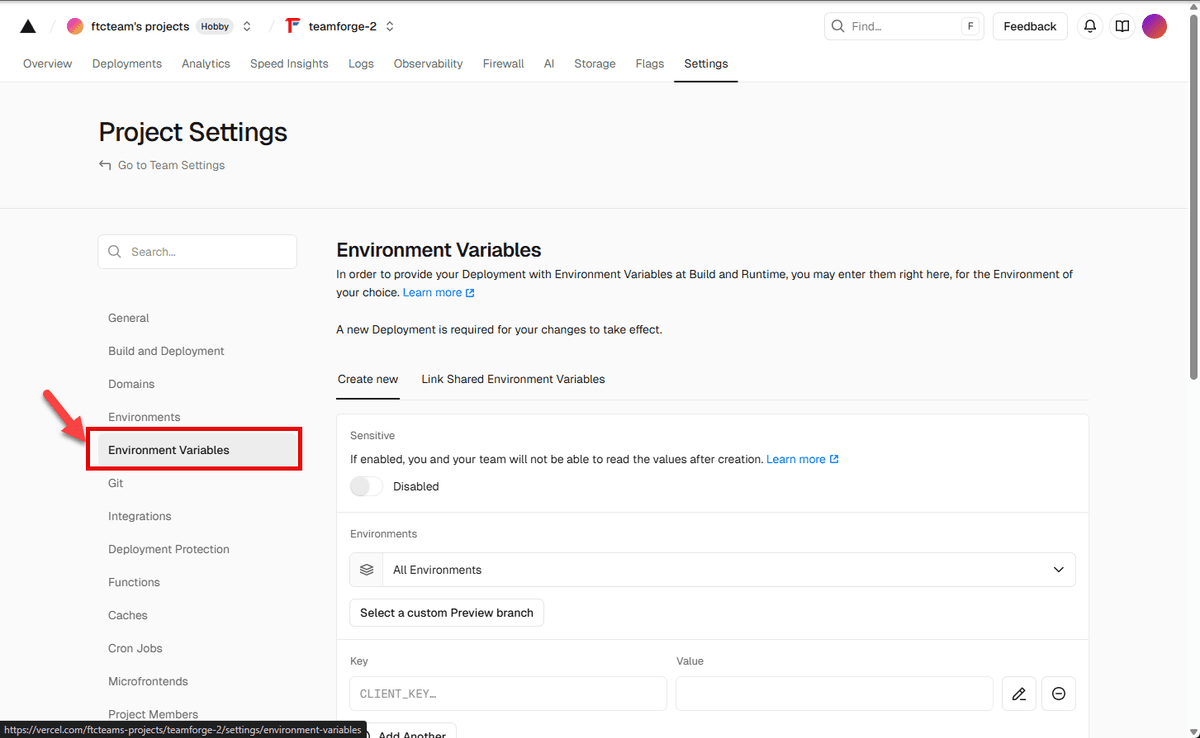
Click on Environment Variables
Add Your Supabase Credentials
Add these three variables (you got these from the Database Setup Guide):
NEXT_PUBLIC_SUPABASE_URL=your-project-url-here
NEXT_PUBLIC_SUPABASE_ANON_KEY=your-anon-key-here
SUPABASE_SERVICE_ROLE_KEY=your-service-role-key-here
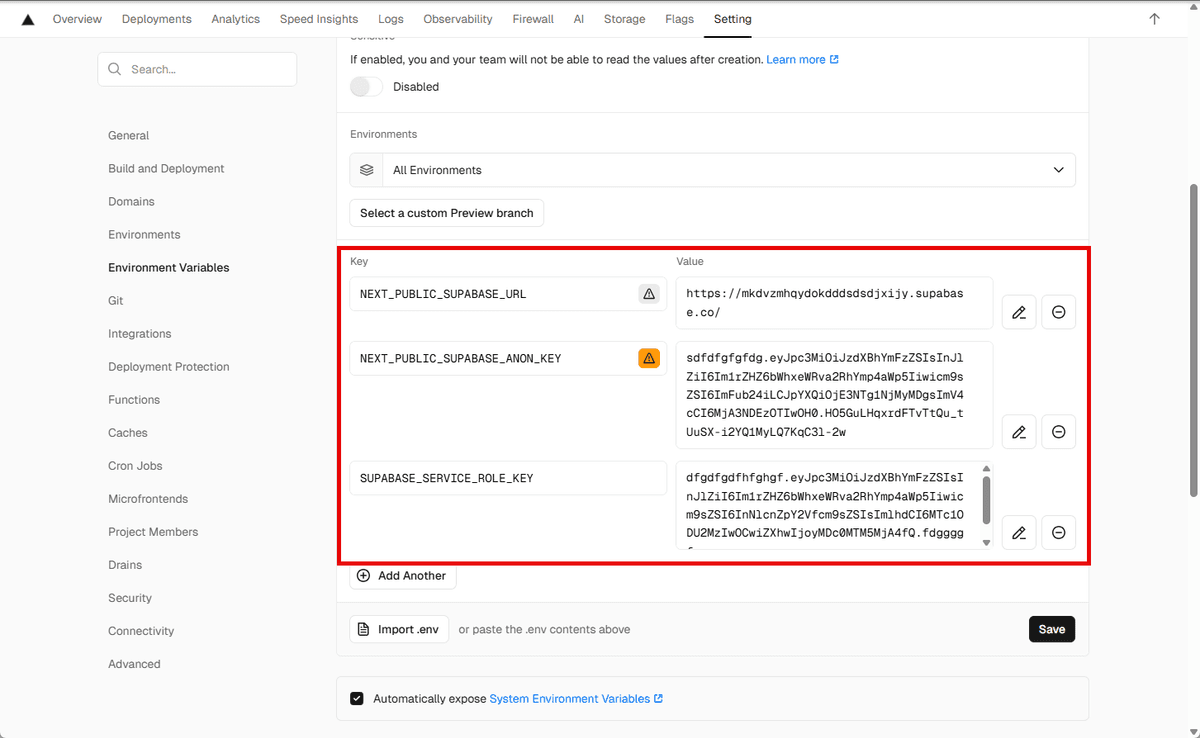
Add environment variables in Vercel
Step 4: Redeploy
After adding the environment variables, you need to redeploy your project for the changes to take effect. Click Redeploy and wait for Vercel to rebuild and deploy your application (usually takes 2-3 minutes).
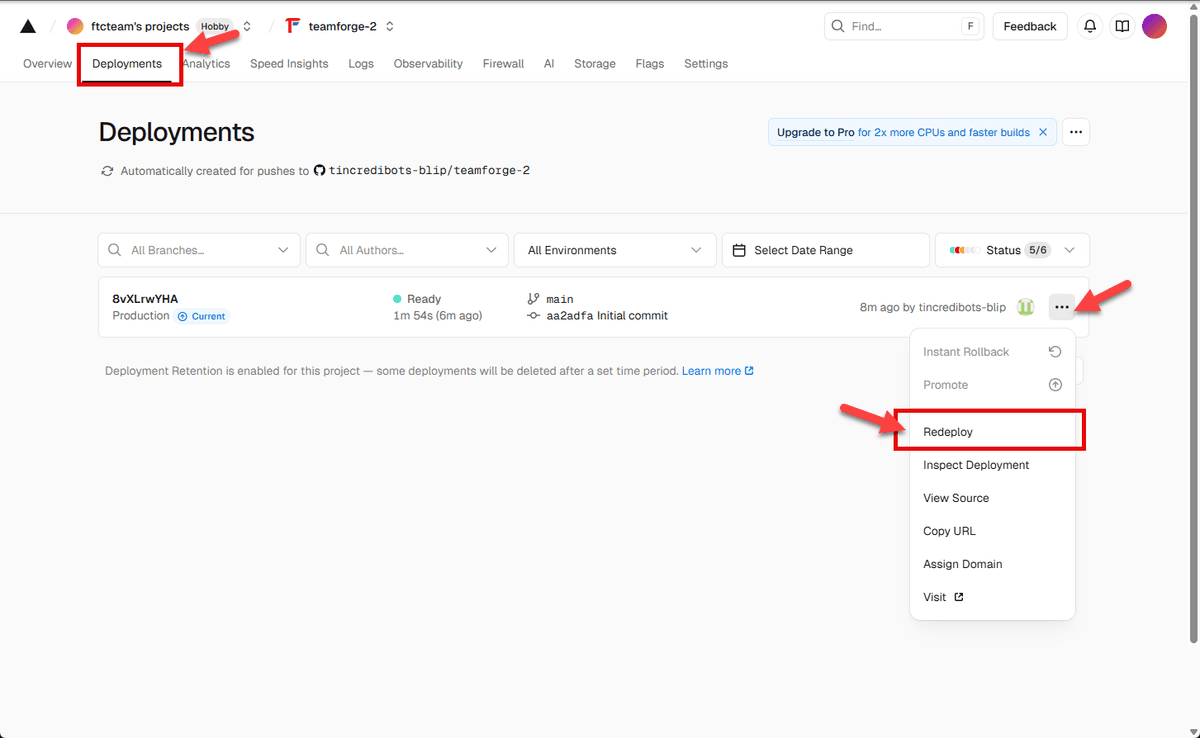
Redeploy your application
Step 5: Access Your Application
🎉 Congratulations! Your TeamForge instance is now live!
Vercel will provide you with a URL like https://your-project.vercel.app. Visit this URL to access your TeamForge installation.
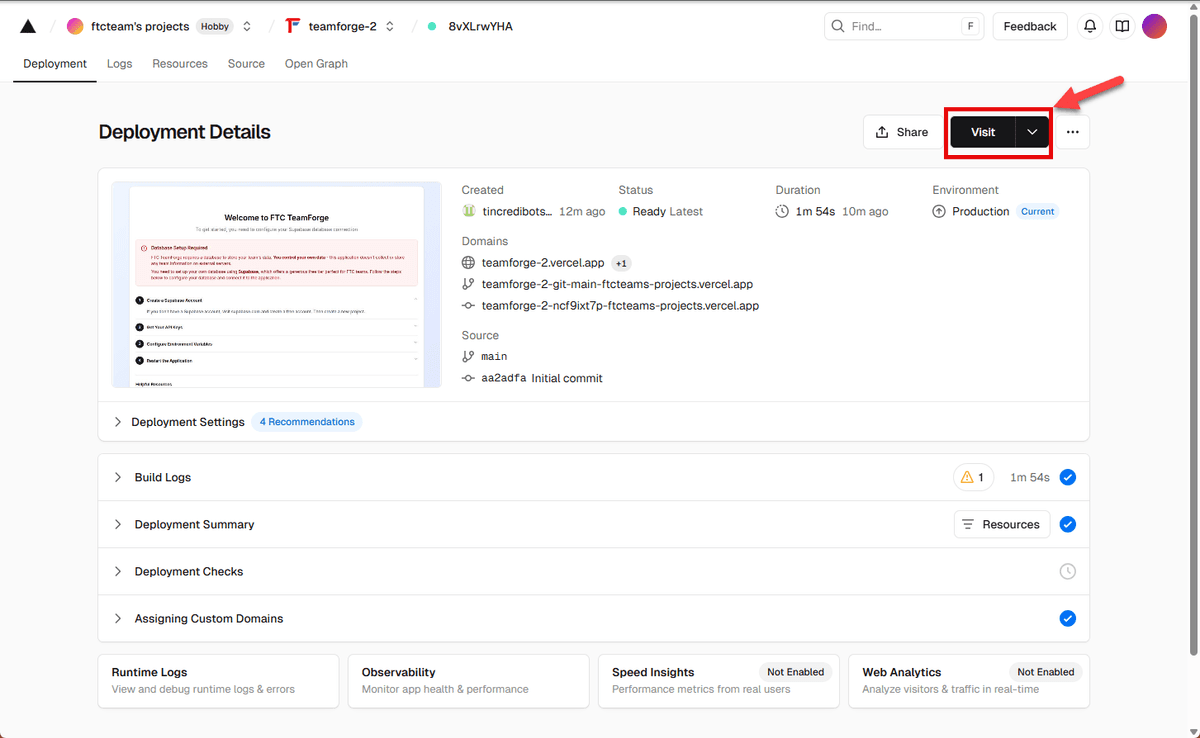
Your deployment is complete!