
Team Notebook
The Team Notebook is your centralized documentation system, featuring a Notion-like editor for creating rich, organized notes.
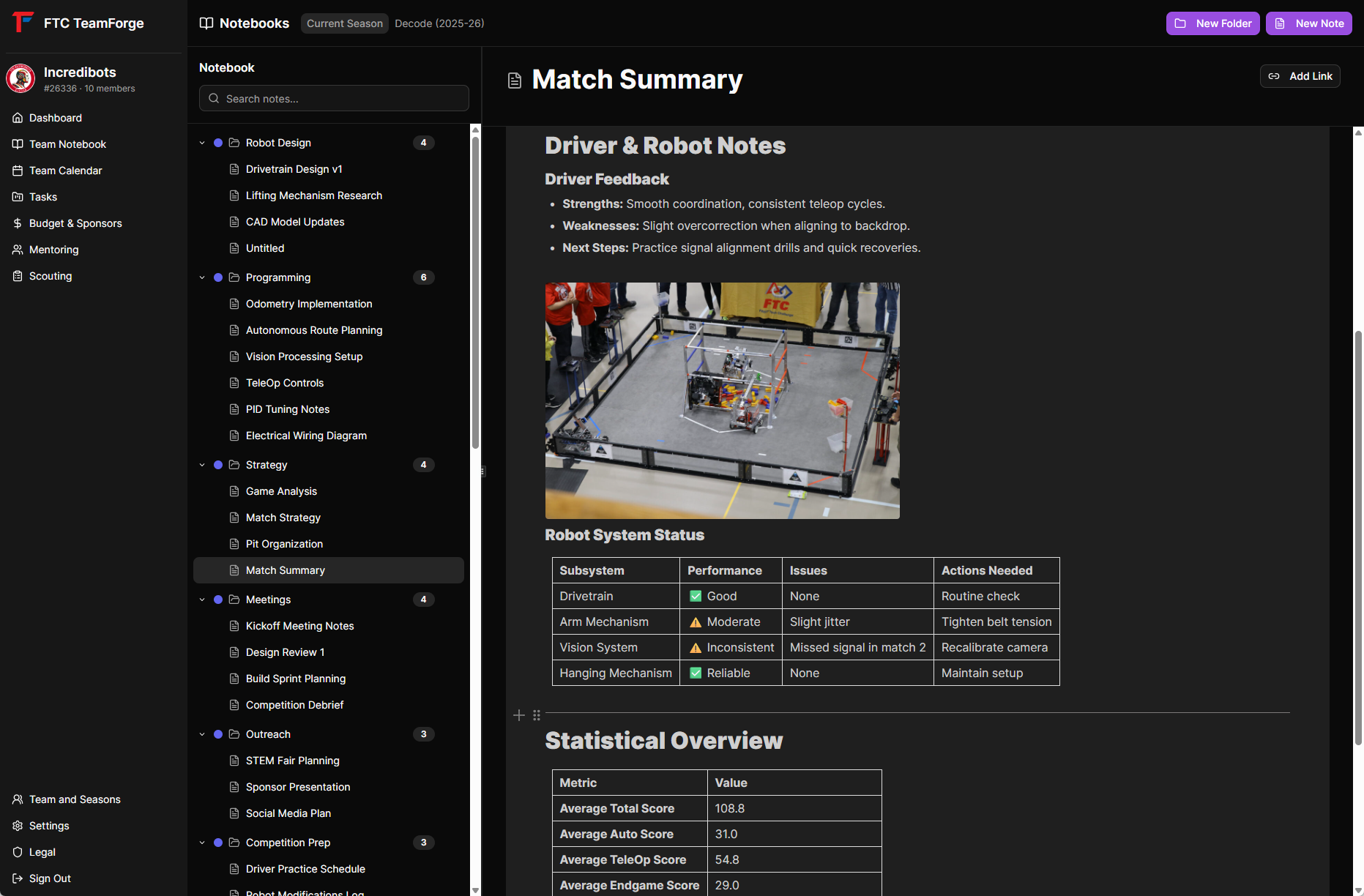 Required screenshot:
 notebook-overview.png
Getting Started
Access the notebook from the sidebar. You'll see a folder structure on the left and your notebook pages on the right.
Creating Folders
Organize your notes with folders:
- Click the "+ New Folder" button in the sidebar
- Enter a folder name
- Choose a color for visual organization
- Optionally select a parent folder for nesting
 Required screenshot:
 notebook-create-folder.png
Folder Features
- Nested Folders - Create unlimited folder hierarchy
- Color Coding - Choose from 10+ colors to visually organize
- Collapsible - Click the arrow to expand/collapse folder contents
Creating Pages
Create a new notebook page:
- Click "+ New Page" button
- Enter a page title
- Select a folder location (or leave in root)
- Start writing!
Using the BlockNote Editor
The rich text editor supports:
- Headings - H1, H2, H3 for structure
- Text Formatting - Bold, italic, underline, strikethrough
- Lists - Bullet lists and numbered lists
- Code Blocks - Syntax-highlighted code
- Quotes - Block quotes for emphasis
- Images - Inline image uploads
- Tables - Data tables
- Checkboxes - Task lists within notes
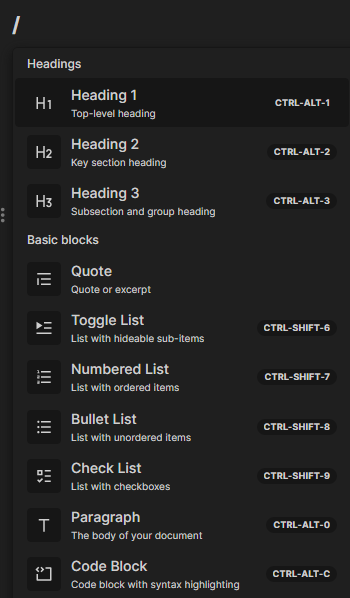 Required screenshot:
 notebook-editor.png
Tips for the Editor
- Use
/to open the block menu and see all options - Drag and drop to reorder blocks
- All content auto-saves - no need to manually save!
Page Management
Pinning Pages
Pin important pages for quick access:
- Click the pin icon next to any page
- Pinned pages appear at the top of the sidebar
- Unpin by clicking the pin icon again
Moving Pages
Move pages between folders:
- Click the three-dot menu on a page
- Select "Move"
- Choose the destination folder
Deleting Pages
Delete pages you no longer need:
- Click the three-dot menu on a page
- Select "Delete"
- Confirm the deletion
Note: Deletion is permanent and cannot be undone.
Search
Find content across all your notebooks:
- Use the search bar at the top of the notebook
- Results show matching pages with context
- Click any result to jump to that page
Mobile View
On mobile devices, the sidebar becomes an overlay that can be toggled open/closed for a better viewing experience.
Season Organization
All notebook pages are tied to your current season. When you switch seasons, you'll see only that season's notebooks, keeping your documentation organized year over year.
Best Practices
- Use Folders - Organize by project, event type, or team area
- Consistent Naming - Use clear, descriptive page titles
- Pin Important Pages - Keep frequently-accessed notes at the top
- Regular Updates - Keep documentation current as work progresses