
Task Management
Manage your team's projects and deliverables with a Kanban-style task board.
Overview
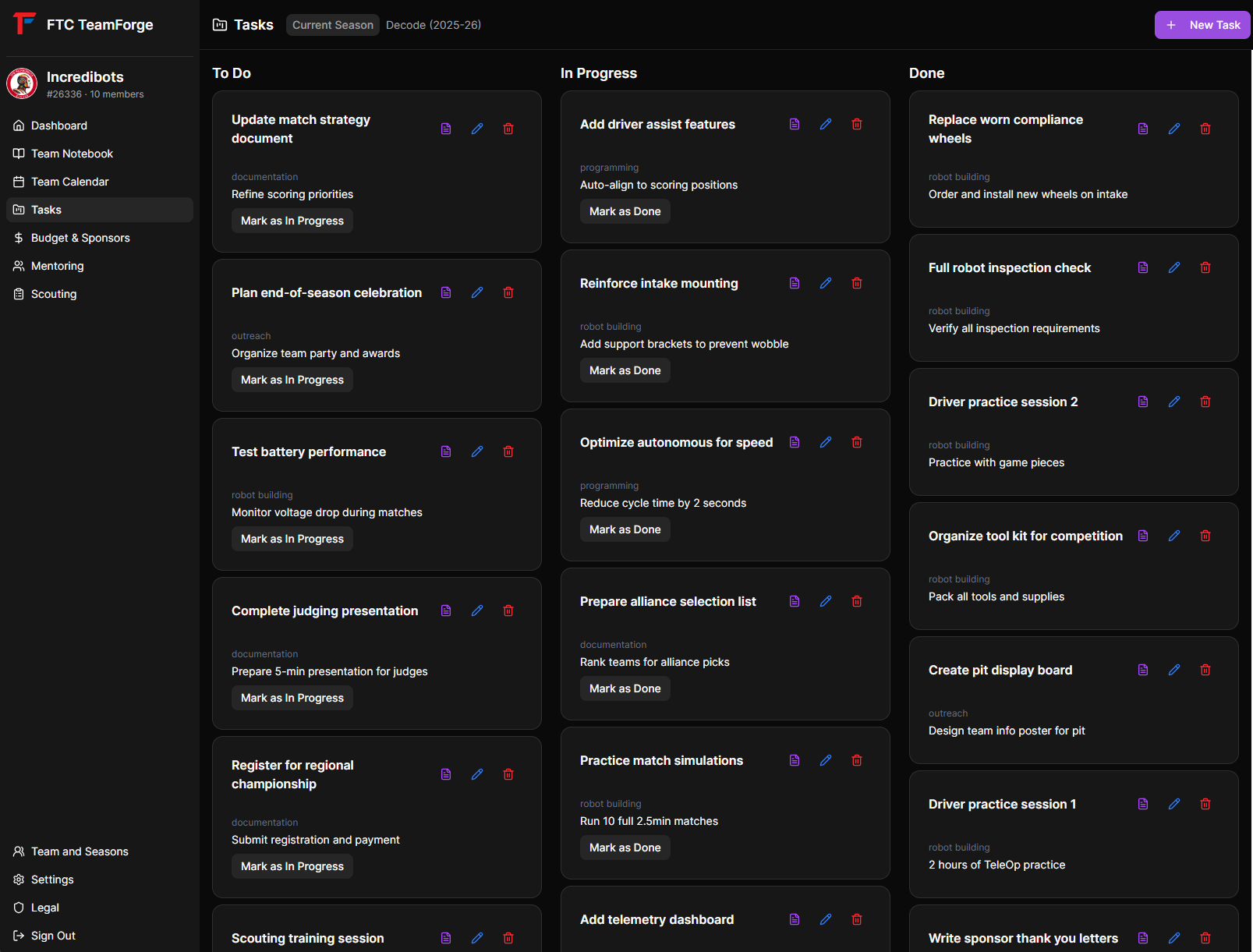
The Task Board helps you organize work into three columns: To Do, In Progress, and Done. This visual approach makes it easy to see what needs attention and track progress.
Creating a Task
Create a new task:
- Click the "+ New Task" button
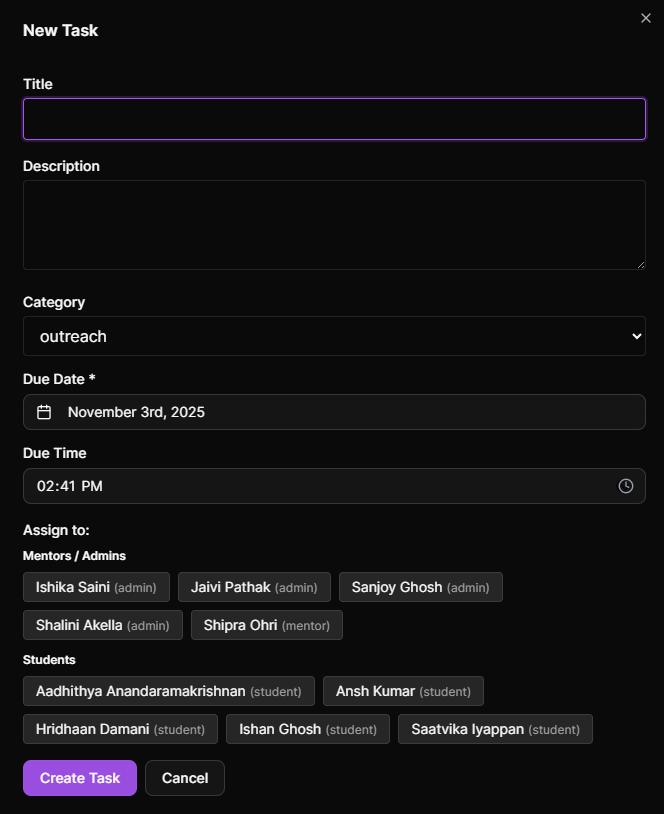
- Fill in the task details:
- Title - Clear, concise task name
- Description - Additional details about the task
- Category - Select from:
- Outreach
- Mentoring
- Fundraising
- Robot Building
- Programming
- Documentation
- Assignees - Assign to one or multiple team members
- Due Date - Set a deadline (optional)
- Click "Create Task"
Task Categories
Tasks are organized by category, each with its own color:
- Outreach - Community engagement and events
- Mentoring - Mentoring activities and sessions
- Fundraising - Fundraising activities and sponsor outreach
- Robot Building - Mechanical and construction work
- Programming - Code development and testing
- Documentation - Team documentation and notebook entries
Searching and Filtering Tasks
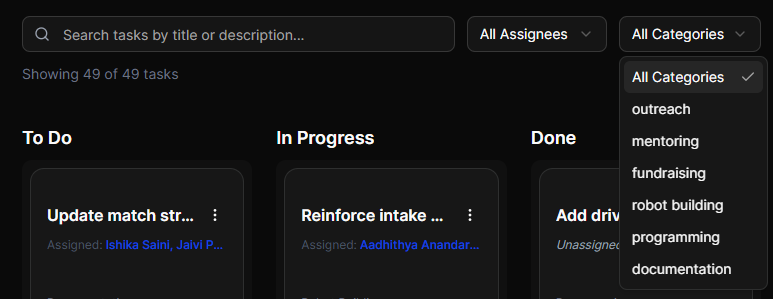
Quickly find specific tasks using the search and filter options:
- Search by Keyword - Type in the search bar to find tasks by title or description
- Filter by Assignee - View only tasks assigned to specific team members
- Filter by Category - Show tasks from specific categories (Outreach, Mentoring, etc.)
You can combine multiple filters to narrow down your results. For example, show all Programming tasks assigned to a specific student.
Managing Tasks
Moving Tasks Between Columns
You can change task status in two ways:
Using Status Buttons:
- Click "Start" to move from To Do → In Progress
- Click "Complete" to move from In Progress → Done
- Click "Reopen" to move Done → To Do
Using Drag and Drop:
- Click and hold a task card
- Drag it to the desired column (To Do, In Progress, or Done)
- Release to update the task status
Drag and drop provides a quick, visual way to update multiple tasks without opening each one.
Editing Tasks
Update task details:
- Click on a task card to open it
- Modify any field (title, description, assignees, due date)
- Changes save automatically
Multi-Assignee Tasks
Assign tasks to multiple team members:
- Team members are grouped by role (Mentors/Admins, Students)
- Select multiple people for collaborative tasks
- Everyone assigned can see the task on their dashboard
Deleting Tasks
Remove tasks that are no longer needed:
- Open the task
- Click "Delete Task"
- Confirm the deletion
Task Notebook Pages
Each task can have linked notebook pages for detailed documentation:
- Open a task
- In the task details, you'll see linked notebook pages
- Create new pages or view existing ones
- These pages appear in the Notebook module with an entity link to this task
Viewing Tasks
By Status
Tasks are displayed in three columns:
- To Do - Tasks that haven't been started
- In Progress - Tasks currently being worked on
- Done - Completed tasks
Task Cards
Each task card shows:
- Task title
- Category badge
- Assigned team members (avatars)
- Due date (if set)
Due Dates
Tasks with approaching deadlines appear in the "Tasks Due Soon" widget on the dashboard. This helps ensure nothing falls through the cracks.
Season-Based Tasks
All tasks are tied to your current season. Switch seasons in the Team page to view tasks from different competition years.
Tips
- Break Down Large Tasks - Create multiple smaller tasks instead of one large one
- Use Categories - Proper categorization helps with reporting and organization
- Assign Ownership - Assign tasks to specific people for accountability
- Set Due Dates - Use deadlines to prioritize work
- Update Status Regularly - Keep the board current to reflect actual progress
- Link Documentation - Use notebook pages for detailed task documentation