
Team Setup
After running the database migration, TeamForge will guide you through a 4-step setup wizard to configure your team. This creates your team profile and the first admin account.
Prerequisites
Before you begin, make sure you have:
- ✅ Completed Database Migration - Follow the Database Migration Guide to initialize your database
Step 1: Team Number and Team Name
The first step asks for your FTC team number and team name.
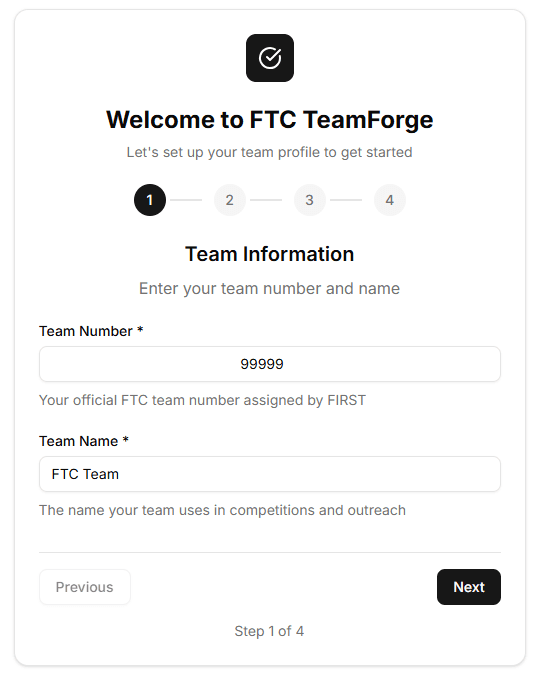
Step 1: Enter team number and team name
Enter your team information:
- Team Number: Your official FTC team number (e.g., 12345)
- Team Name: Your team's name (e.g., "Incredibots")
Click Next to continue.
Step 2: School Information
In step 2, provide your school details. All fields in this step are optional.
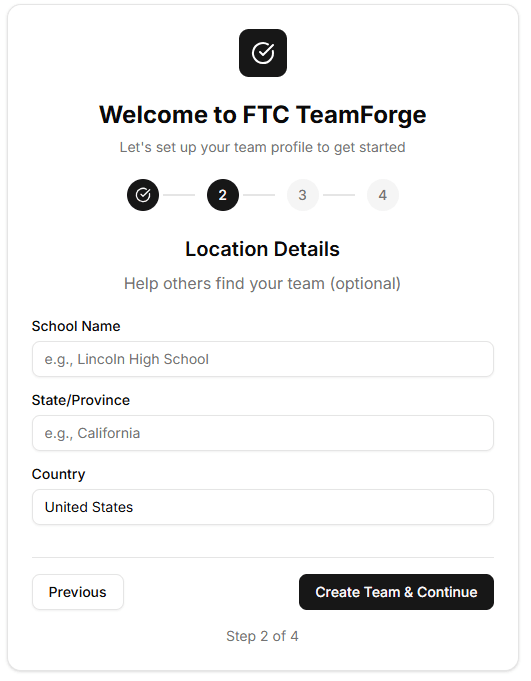
Step 2: Enter school information (optional)
Enter your school information (optional):
- School Name: The name of your school or organization
- State: Your state or province
- Country: Your country
Click Next to continue.
Step 3: Season Information
In step 3, enter the current season name.
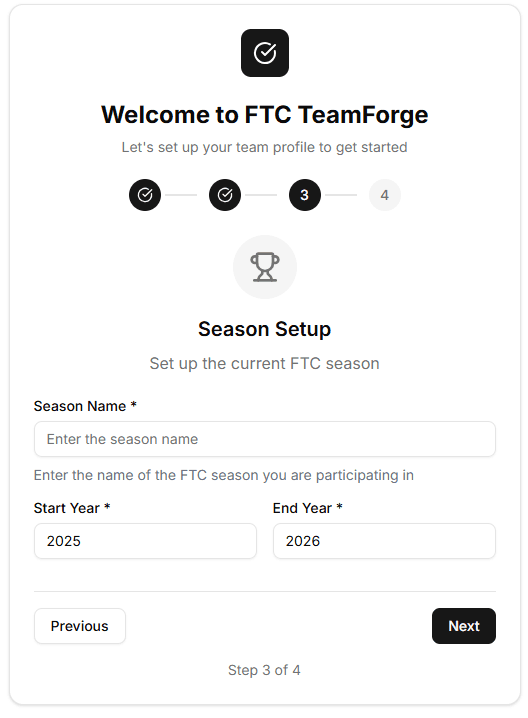
Step 3: Enter season information
Enter the current season:
- Season Name: The name of the current FTC season (e.g., "Into the Deep", "Centerstage", "Freight Frenzy")
Click Next to continue.
Step 4: Create Admin Account
The final step creates the first admin account. This admin user will have full permissions to manage the team, add other members, and configure settings.
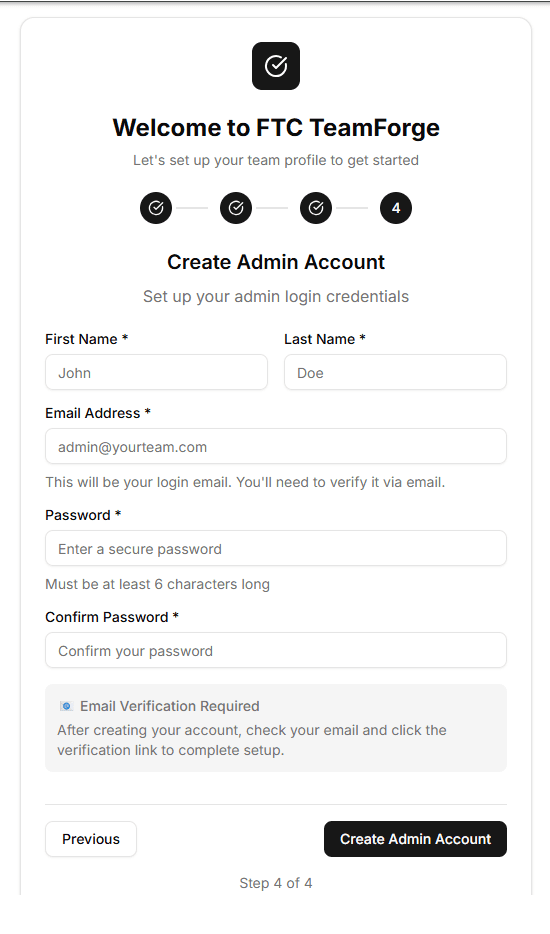
Step 4: Create admin account
Create your admin account:
- Name: The admin's full name
- Email: A valid email address (you'll need to verify this)
- Password: A secure password for the admin account
Click Complete Setup to finish.
Email Verification
After creating the admin account, you must verify the email address before you can log in. Check your email inbox for a verification message from TeamForge and click the verification link to confirm your account.
Log In
Once your email is verified, you can log in to TeamForge with your admin credentials and start using the application!
💡 Important
The admin account created in this setup has full permissions. Make sure to use a strong password and keep the credentials secure. You can add additional team members and assign different permission levels after logging in.
What's Next?
Now that your team is set up, you can:
- Log in with your admin account
- Add team members
- Start creating notebook entries
- Set up tasks and calendar events
- Customize team settings